
PCCB Portal Login & Register. If you’re looking to apply for opportunities or manage your profile through the PCCB portal, this guide will show you exactly how to create an account, login, and troubleshoot common issues step by step.
What is PCCB Portal?
The PCCB Portal is an online system used to manage job applications, user profiles, and communication with applicants. Through the portal, users can:
- Create an account
- Apply for job positions
- Track application status
- Update personal details
- Receive notifications
PCCB Portal Login & Register (2026 Guide)
How to Register on PCCB Portal (Create Account)
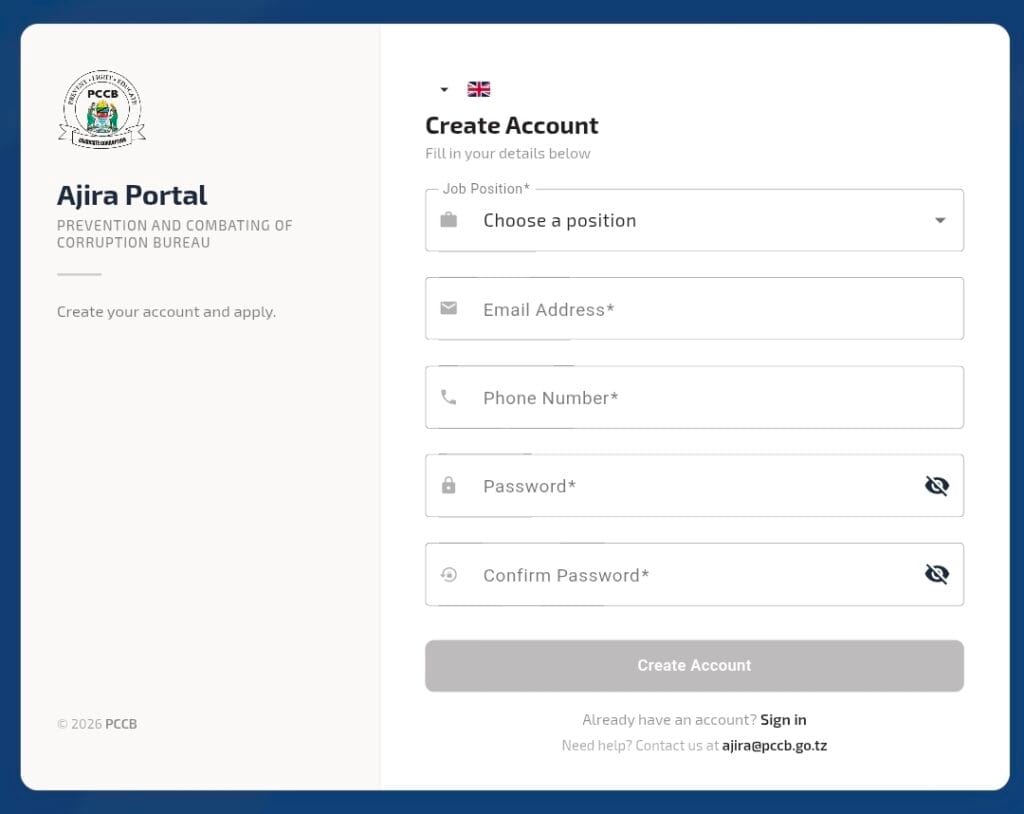
Follow these steps to successfully create your PCCB account:
Step 1: Open Registration Page
More Read

Visit the official PCCB portal and click on “Register” or “Create Account.”
Step 2: Fill in Your Details
Use the form below as a guide:
- Job Position → Choose your desired position
- Email Address → Enter a valid email (e.g. [email protected])
- Phone Number → Use active number (e.g. 0712xxxxxx)
- Password → Minimum 8 characters
- Confirm Password → Re-enter the same password
Step 3: Submit Registration
Click Create Account and wait for confirmation.
Step 4: Verify Your Account
You may receive a verification email or SMS. Follow the instructions to activate your account.
Register Link https://ajira.pccb.go.tz/register
PCCB Portal Login (Sign In Guide)
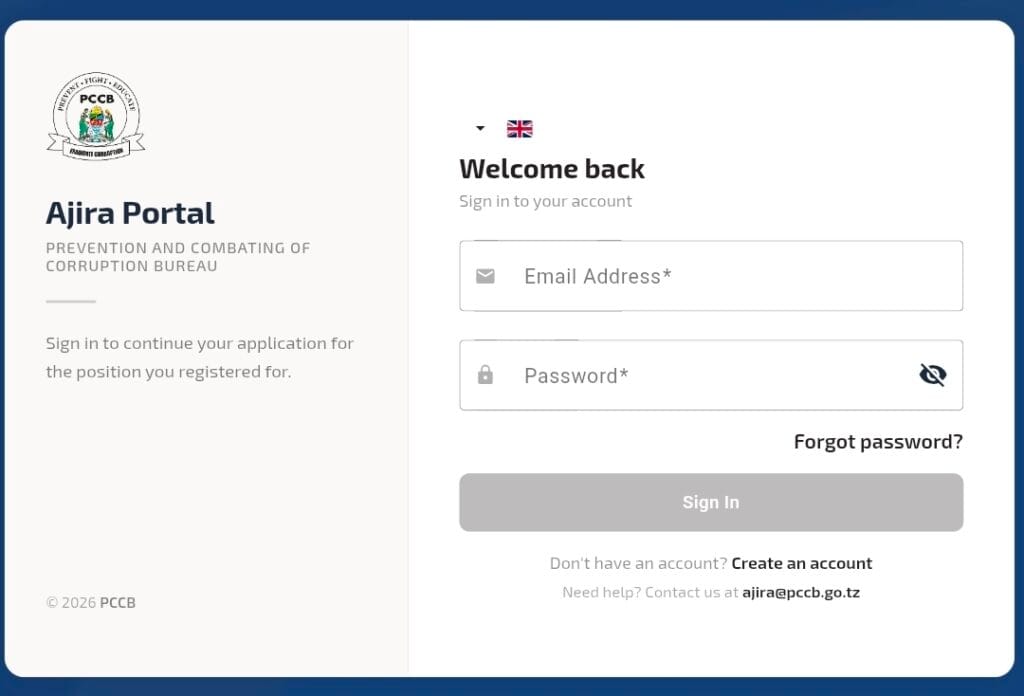
Once registered, follow these steps to login:
Step 1: Go to Login Page, Click on “Login” or “Sign In.”
Step 2: Enter Your Credentials
- Email Address → [email protected]
- Password → Your registered password
Step 3: Click Sign In
Access your dashboard and start using the portal.
Login Link https://ajira.pccb.go.tz/login
Forgot Password? (Reset Guide)
If you can’t remember your password:
- Click “Forgot Password?”
- Enter your registered email
- Check your email for reset link
- Create a new password
Common PCCB Portal Issues & Fixes
1. Login Not Working
- Check email and password
- Ensure Caps Lock is off
- Try resetting password
2. Registration Failed
- Use a valid email
- Ensure password is at least 8 characters
- Avoid duplicate accounts
3. Verification Email Not Received
- Check spam/junk folder
- Wait a few minutes
- Try resending
Tips for Successful Application
- Use a professional email address
- Double-check your phone number
- Keep your login details safe
- Update your profile regularly
Conclusion
The PCCB Portal makes it easy to register, login, and apply for opportunities online. By following the steps above, you can quickly create your account and access your dashboard without issues.
If you face any problems, use the password reset option or contact PCCB support for help.